Appearance
Create Scraper
Preparation
- Open Webpage to Scrape
- Open ScrapeFan extension by Chrome icon:

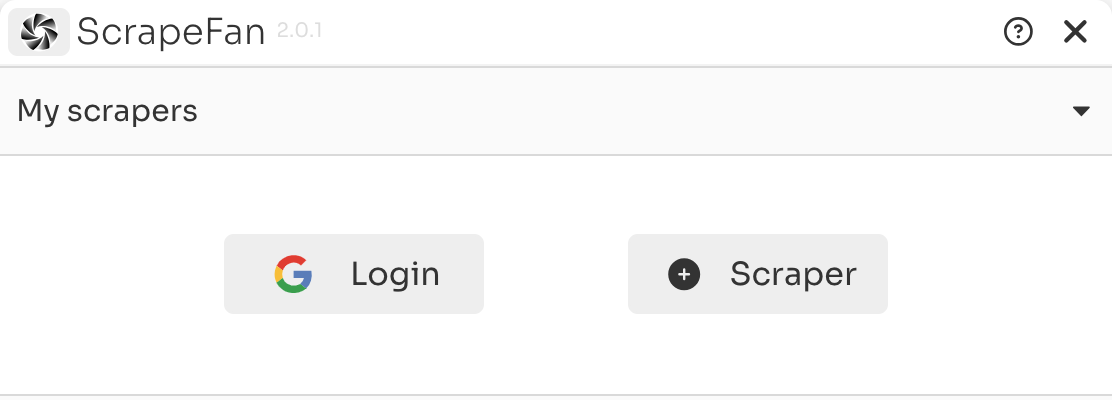
Login and Start
Click ➕ button to create a new Scrape of your own.
It is recommended to login with Google account, so you can save your creations.
Scraper config
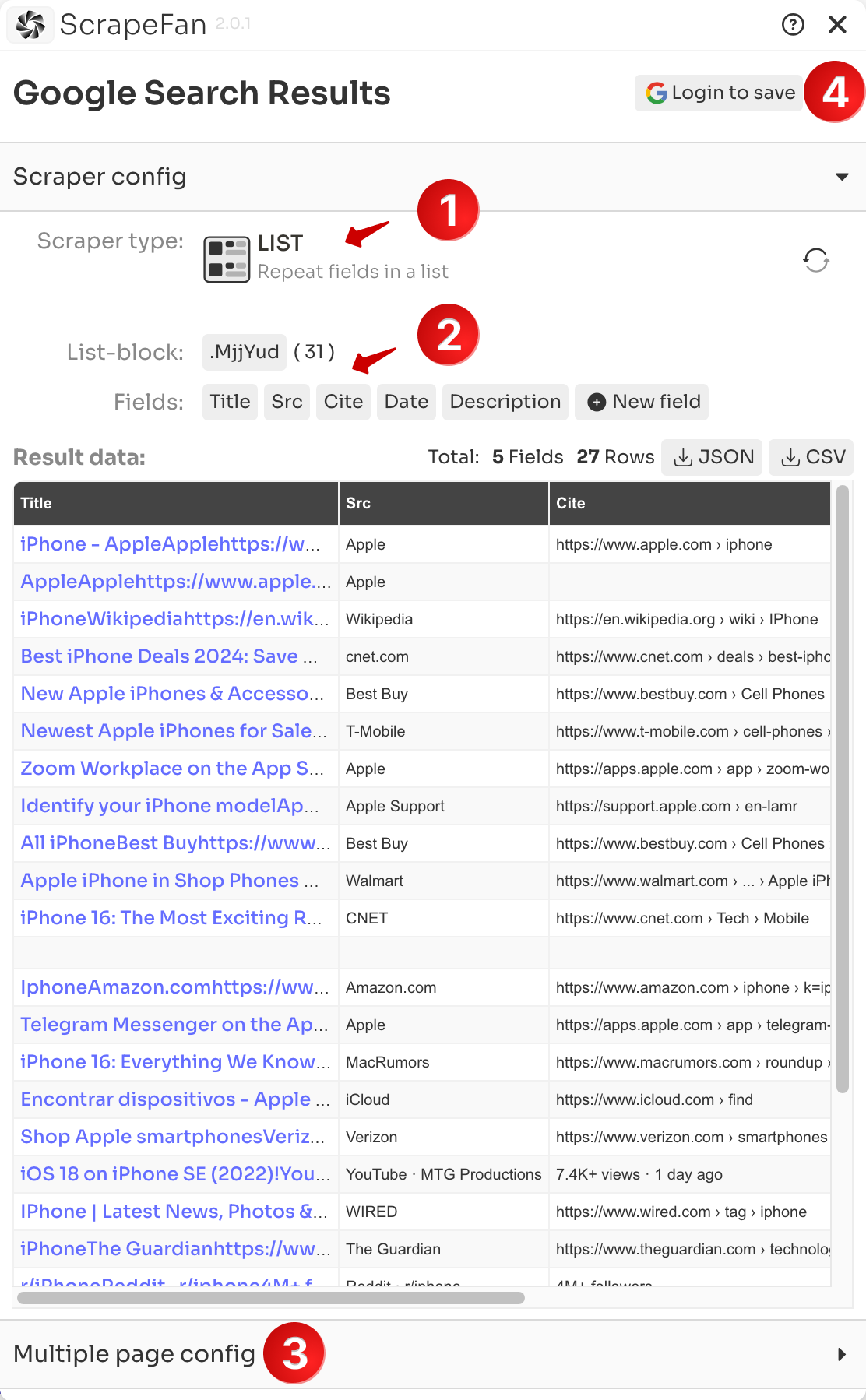
1. Choose Scraper type
There are two Scraper types:
- DETAIL type is for scraping fields that are unique on a single webpage
- LIST type is for scraping fields within a list-block where the blocks repeat on the webpage.
- more explanation
2. Pick fields on webpage
After choosing type, you can pick data fields on the current webpage:
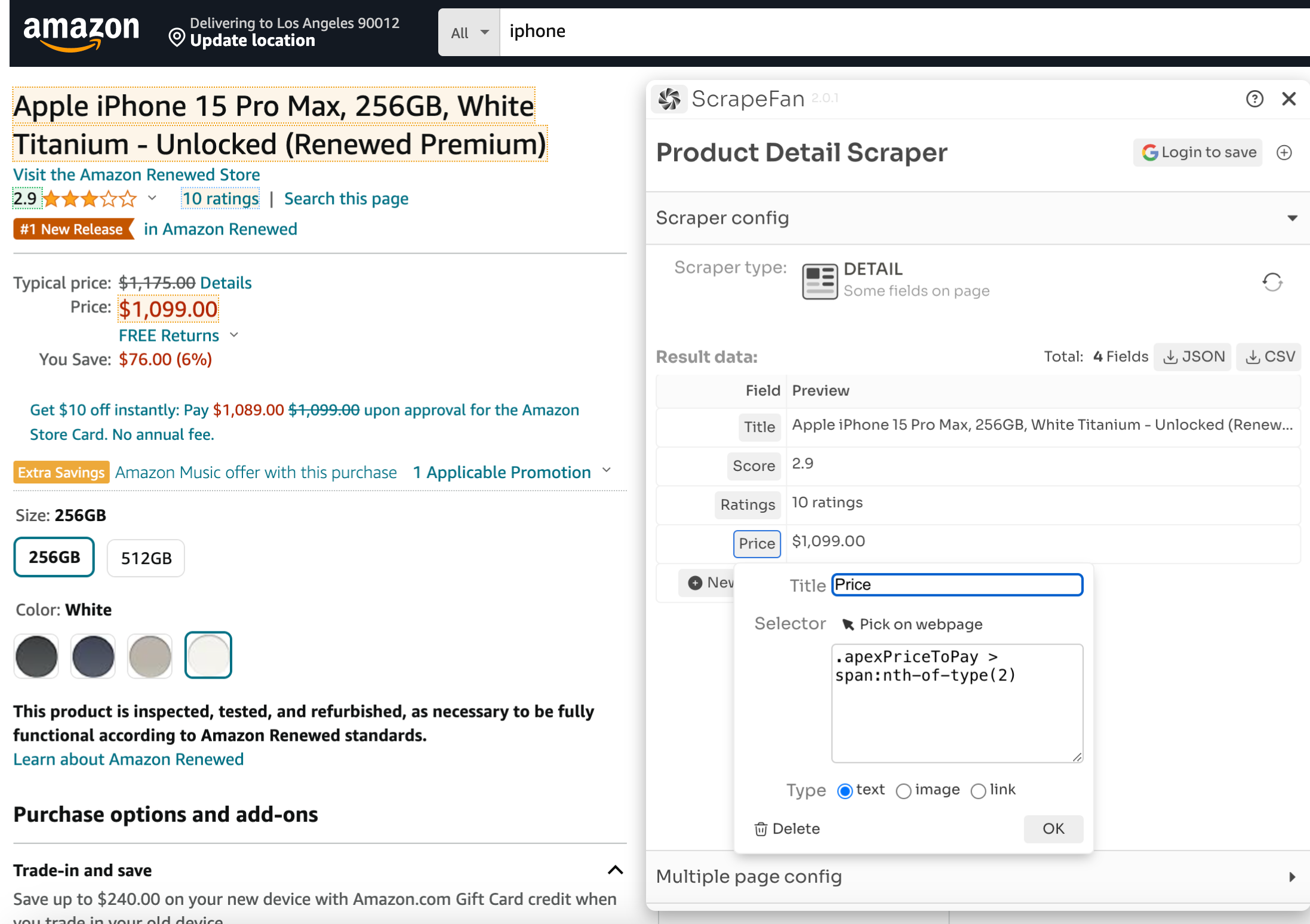
- Fields data is real-time preview
- If type is LIST , you need to pick a
list-blockbefore pickingfieldsin the list-blocks. - LIST preview data will display as a table, with each list-block of data in a separate row.
- Fields can be set to text / image / link type. This will extract different data into the result: image with their
srcattributes and links with theirtextandhref.
3. Multiple page config
After setting the fields, go to the final panel for configuring multiple pages.
Now ScrapeFan supports three types of multiple pages:
List of page URLs
Input your URL list into the textarea, seperated by lines
Pages with Next-Button
You need to pick the Next-Button on the webpage, similar to picking fields
Infinite Scroll page
4. Save Your Scraper
After finishing, remember to Login and save your works. The Login and Save button is located on the top right.
Saved Scrapers will be displayed on the extension's homepage.